01 Add a Server or Import a Subscription
First identify what information you have: a complete URL used to update a server list is usually a subscription; a set of protocol, address, port, and authentication details is for an individual server. Both start from the add option on Home, but require different information. Don’t enter a subscription URL as Host or paste an individual server address into Subscribe.
Existing Subscription: Choose Subscribe
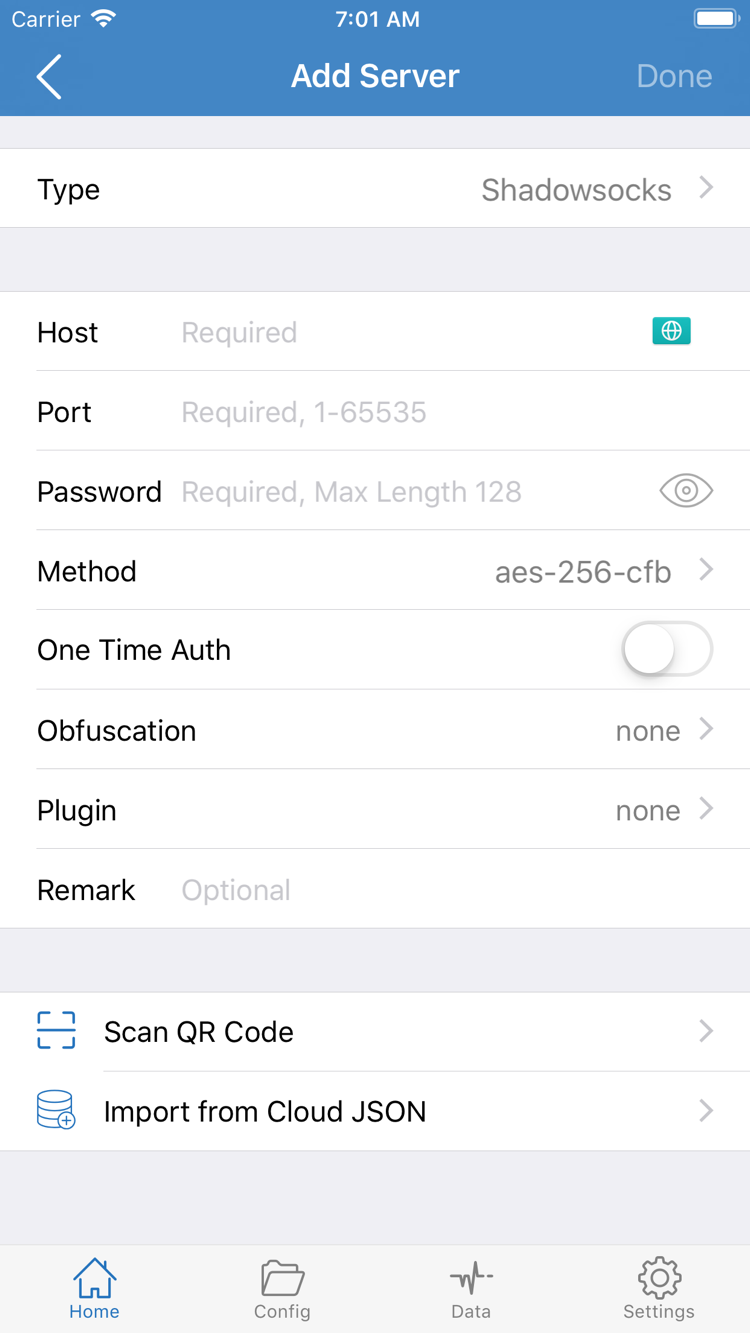
On Home, tap Add Server or the add button at the top. In Add Server, open Type and choose Subscribe. Paste your complete URL in the subscription URL field. Check that the beginning, end, and query parameters are intact, then enter a recognizable name and save. Extra spaces or line breaks, or copying only part of a link from a message, can cause the import to fail.
After saving, return to Home and wait for the server list to load. If no entries appear, open the action menu for the subscription, update it, and check for an error message. To confirm a successful import, look for the corresponding group and server entries on Home, and check that you can select an entry. Seeing the subscription name alone doesn’t mean its contents were retrieved successfully.
A subscription update adjusts the list based on its remote contents. Avoid changing the subscription URL, server fields, and configuration file all at once. First confirm the list updates successfully, then continue. If an update fails, check that the original URL is still valid, that your current network can reach it, and that the response is in a subscription format supported by the app—not a webpage or login screen.
Existing Server Details: Fill In Add Server
To add a server manually, first set Type to the protocol specified in your details, then enter Host and Port. Fill in Password, Method, or other authentication parameters required by that protocol. The fields vary by Type: Password and Method in the screenshot are examples for the relevant type, not settings to use with every protocol.
For Host, enter only the server domain or address provided. Port must match the port the server actually listens on. Passwords are case-sensitive; watch for leading or trailing spaces when copying. If TLS, a server name, or a transport path is involved, check each value against the original details rather than guessing from the domain. Before saving, check Type again to avoid selecting the wrong protocol even if the address and password are correct.
If you have a QR code for the server, use Scan QR Code to import it, then check the fields. Import from Cloud JSON is only for existing cloud JSON details in a compatible format; it isn’t the right import option for every subscription URL. Once either method is complete, return to the SERVER group on Home, confirm that you can select the saved server, then configure Global Routing.
02 Choose Global Routing and a Configuration
The server determines which remote connection details the proxy uses; Global Routing determines which requests it handles. Return to Home, tap Global Routing, and identify the three modes: Config, Proxy, and Direct. When getting started, don’t just check whether the switch is on—make sure the selected mode suits what you’re trying to verify.
Config: Route Traffic According to Rules
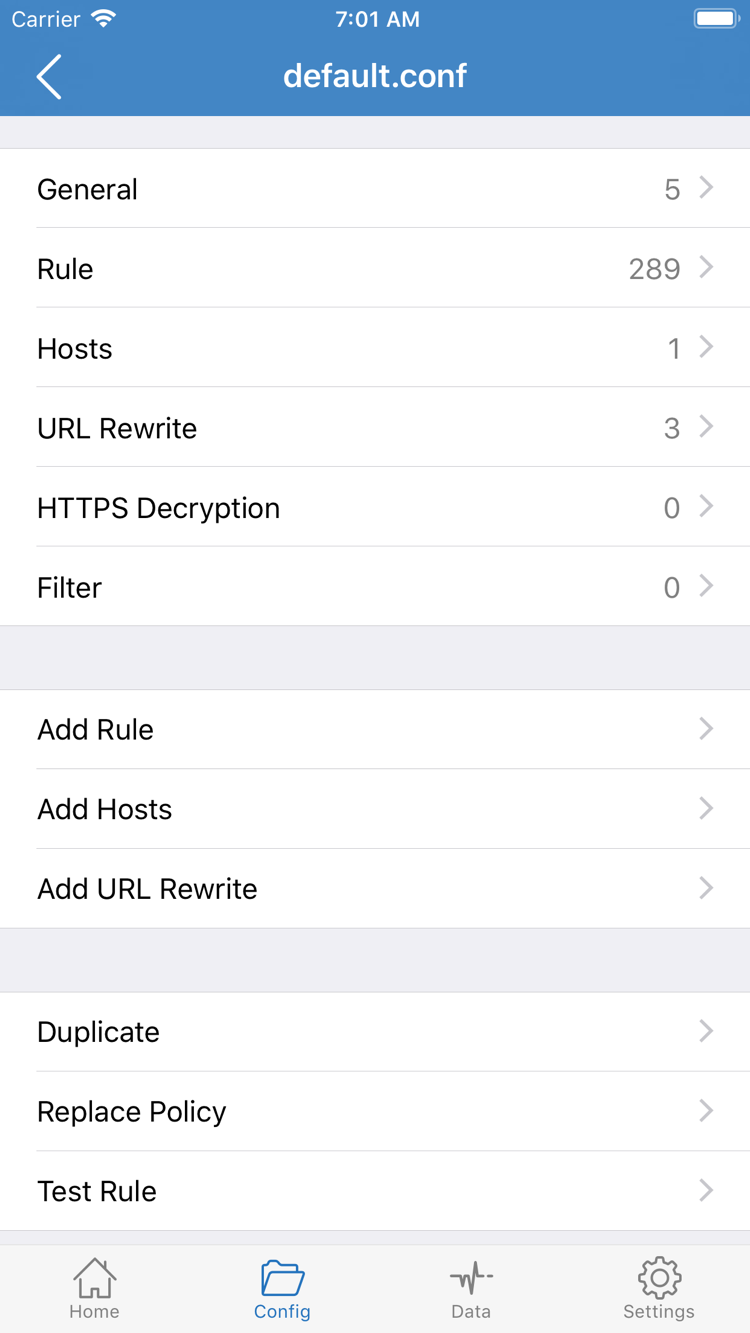
For everyday domain- or address-based routing, choose Config, then open the Config page and confirm which configuration file is active. Config stores rules and related settings, not the subscription server list. Successfully importing a subscription doesn’t mean the expected configuration is selected. Check the server on Home and the active file in Config separately.
Open a configuration file’s edit screen to see sections such as General, Rule, Hosts, URL Rewrite, and HTTPS Decryption. When starting out, check the file’s source and the final policy in Rule; you don’t need to change every section to connect. In particular, HTTPS Decryption is not required for a first connection. The connection checks in this guide don’t depend on it.
The snippet below illustrates how matching works; you don’t need to replace your existing file. Rules are usually checked from top to bottom, and the first match determines the policy. FINAL is used only if none of the preceding rules match. Actual requests are also affected by the current Global Routing mode and other settings, so a single rule doesn’t tell you how the entire connection will behave.
[Rule]
DOMAIN-SUFFIX,example.com,PROXY
IP-CIDR,192.168.0.0/16,DIRECT
FINAL,PROXY
In this snippet, example.com and its subdomains use PROXY; requests matching the specified private address range use DIRECT; all other requests ultimately use PROXY. These addresses illustrate the syntax and are not connection details. Save a copy before editing an existing configuration so test rules don’t overwrite your original settings.
Proxy and Direct: Compare Connection Paths
Proxy routes most traffic through the proxy path, which can help determine whether an issue is related to rule-based routing. Direct provides a comparison with access over your current network. Neither mode fixes an unavailable server or incorrect authentication details. If access fails in Proxy, check the connection details rather than repeatedly switching modes and expecting them to change.
After checking the mode, return to Home and keep the expected server selected. If you temporarily use Proxy or Direct for testing, switch back to Config afterward. For details on configuration sections, rule priority, and policies, see Rules and Configuration Field Reference. To get started, simply distinguish the server, mode, and active configuration.
03 Connect and Authorize
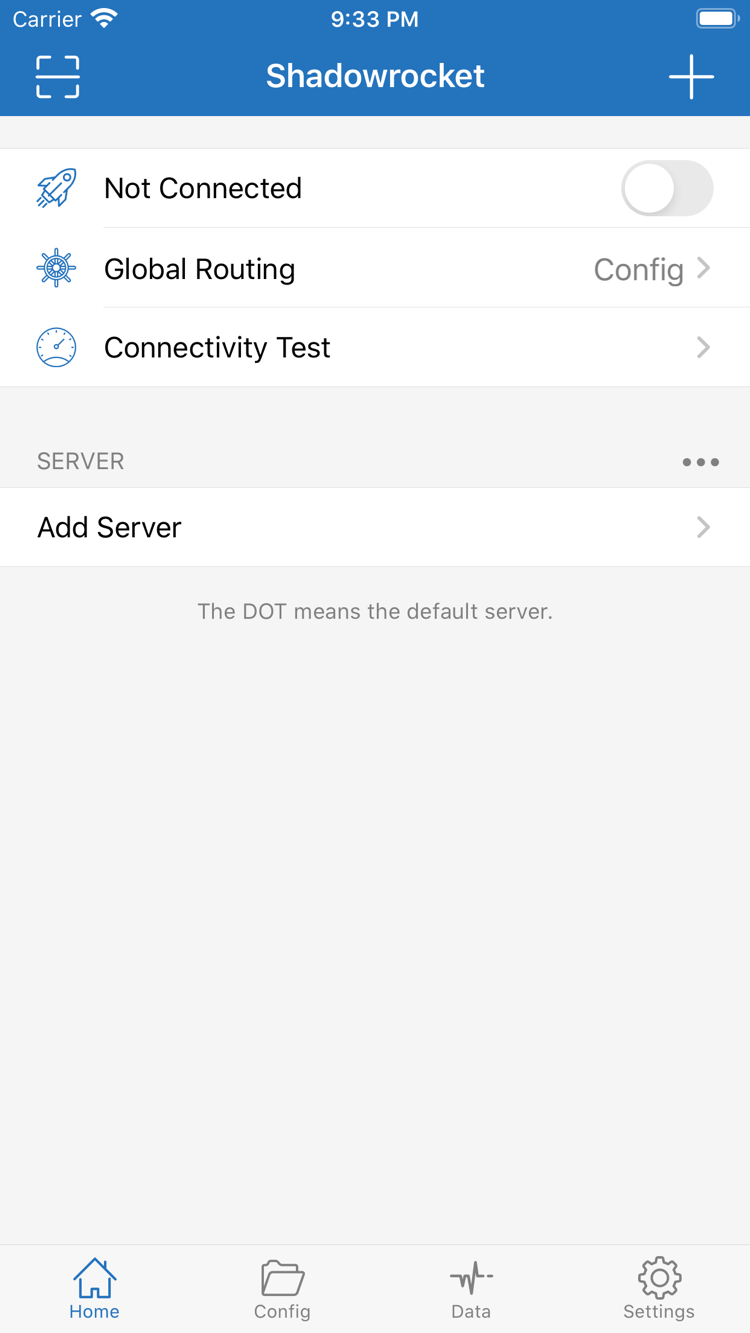
Return to Home. In the SERVER group, tap the server you want to use and check that the selection indicator is on the right entry. Then check Global Routing. Not Connected at the top of the screenshot indicates that it wasn’t connected at the time. This is a status label; a server’s name or test result cannot stand in for it.
Tap the connection switch at the top of Home. When establishing a connection for the first time, the system may ask to let Shadowrocket add a VPN configuration. Read the app name and description in the system prompt, confirm that it follows an action you initiated, then allow it and complete any device verification. This authorization lets the system route the relevant network traffic through the app; it doesn’t fill in server addresses or authentication details for you.
After authorizing, return to Shadowrocket and check whether the top switch and status text show that the connection is active. If the switch turns off again or an error appears, note the message and check the server fields instead of tapping repeatedly. If you haven’t completed system authorization, start the connection again and respond to the prompt. If a device management policy restricts this, check the relevant restrictions first.
An active connection only means that network handling has started at the system level. It doesn’t guarantee that the server or every website is reachable. Some errors only appear when a request is made, such as an incorrect password, an unreachable remote server, a DNS lookup failure, or a routing mismatch. After connecting, continue with the tests and real-world access checks in the next section.
To disconnect, return to Home, turn off the switch at the top, and confirm the status changes. During your first round of checks, avoid enabling new automatic connection conditions at the same time. Otherwise, the app may reconnect after you switch it off, making the results hard to interpret. If On Demand is already configured, review its triggers before pausing automatic behavior. See Settings and Troubleshooting on this page for how to check it.
04 Verify the Connection and Routing
Check three things: whether the system connection stays active, whether the selected server completes its test, and whether real requests are handled as expected. The switch, a VPN indicator, or a single test result alone can’t prove that every destination is reachable. Keep the network conditions unchanged and follow the steps below to link the results to specific settings.
Run Connectivity Test First
On Home, tap Connectivity Test and wait for it to finish. Check whether the selected entry returns a result or an error. You can review the test method in Settings under Test Method. Different methods check different stages, so a successful test doesn’t guarantee that real requests will work, and a failed test alone can’t identify every cause.
If the test fails, keep the current state and check the server details and basic network connection first. Don’t delete multiple entries at once or treat the test result as the only proof that a subscription is still valid. List updates, address reachability, and successful authentication are separate issues and need to be checked separately.
Then Check Real Requests and Policies
Open a browser, visit the page you want to check, and reload it to see whether the request completes. If you’re using Config, look in the app’s request records or the relevant Data page for entries matching the domain and request time, then check which policy was applied. The exact location depends on the current app interface. Don’t mistake an older request or background traffic from another app for this test.
For requests that should use the proxy, check that they match PROXY. For requests expected to connect directly, check for DIRECT. If a request matches REJECT, first confirm that the blocking rule reflects the intended configuration. Pages using a CDN may request resources from multiple domains. If some resources fail, inspect those requests instead of checking only the main domain in the address bar.
If you still can’t tell whether the issue is with the rules or the connection, temporarily switch from Config to Proxy and retry the same destination for comparison. If Proxy works but Config doesn’t, check the rules, FINAL, and DNS first. If both modes fail, check the server and authentication. Restore the original mode afterward, changing one condition at a time and noting the results before and after.
05 Settings and Common Issues
Troubleshoot in this order: network → connection details → connection → mode → rules. Save your current configuration and note whether the failure occurs during import, testing, connection, or actual access. Avoid changing multiple fields at once; otherwise, even if things start working again, it’s hard to tell which change helped.
No Server Entries: Check the Import
First confirm that the device can access the network, then check the full address in Subscribe, especially any parameters at the end of the URL. If no server entries appear after a manual update, check whether the remote server returned valid subscription data and whether your subscription is still active. Keep the original error message, but hide any authentication details in the subscription URL before sharing it.
If an entry exists but the connection fails, reopen its server edit screen and compare Type, Host, Port, and authentication details with the original information. For additional transport settings, check fields such as the path and server name as well. The goal is to make the details match—not to randomly switch protocols or encryption methods.
Switch Is On but Access Fails: Troubleshoot by Layer
Run Connectivity Test first, then check Global Routing. If the current mode is Direct, it can’t verify whether the proxy server works. If the mode is Config, confirm that the right configuration is selected and that an earlier rule hasn’t already matched the destination. FINAL applies only to requests not matched by earlier rules; it can’t override a DIRECT or REJECT rule that has already matched.
If the server test returns a result but domain access fails, check DNS settings and related request records. Changing DNS isn’t a fix for every issue: it won’t resolve incorrect authentication, an unreachable remote server, or a rule that blocks the request. Note the current DNS settings, confirm that the problem is actually with domain resolution, and then test one change at a time. For a systematic checklist, see Troubleshooting: Connected but No Internet.
Settings: Check Before Changing
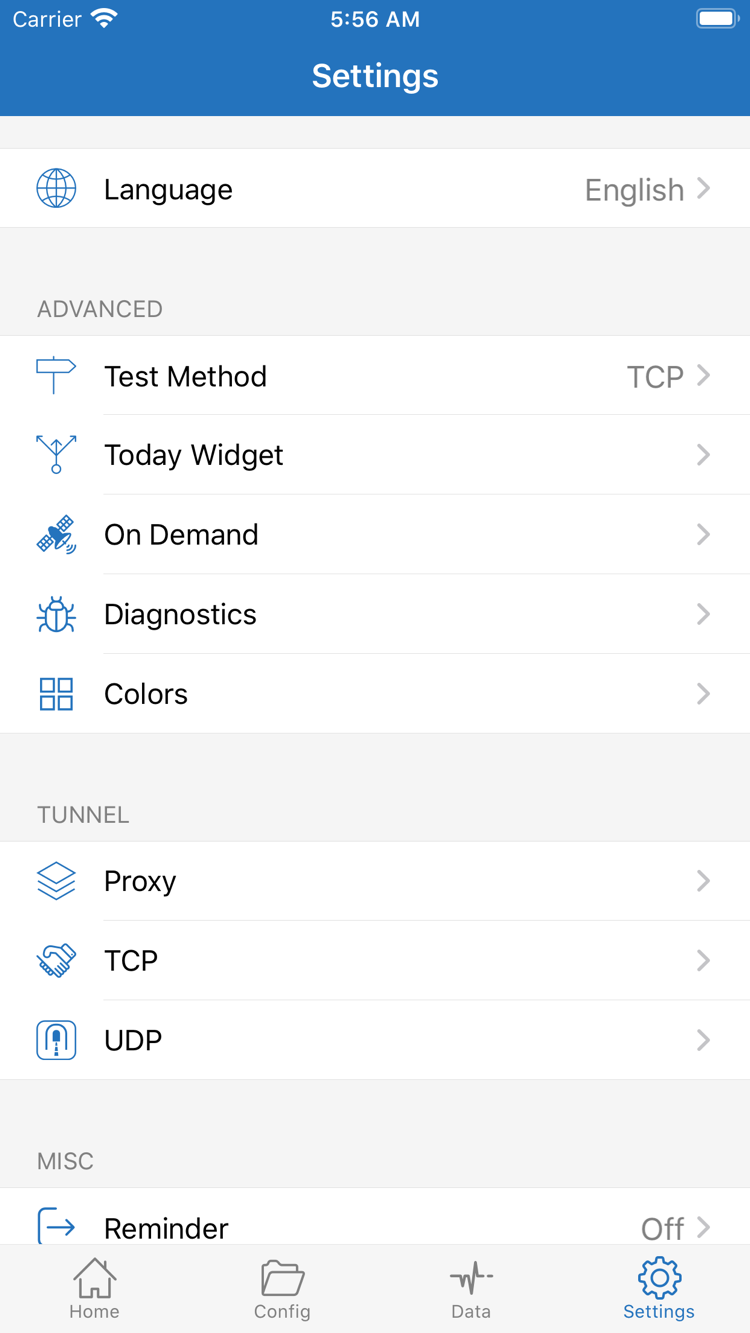
In Settings, you’ll find options such as Test Method, On Demand, Diagnostics, Proxy, TCP, and UDP. Test Method lets you check the current test method; On Demand manages automatic connections based on conditions; Diagnostics lets you view or generate diagnostic information. These settings serve different purposes, and you don’t need to change them all when getting started.
If the app reconnects after you turn it off manually, check whether any On Demand rules still match before taking other action. If the issue occurs only with certain apps or on a particular network, note whether you were using Wi-Fi or cellular, which destination failed, and when it happened, then check relevant settings such as TCP and UDP. Look up advanced settings after narrowing down the issue, and avoid changing options unrelated to it.
Before saving Diagnostics information, check whether it includes server addresses, subscription links, authentication fields, or personal activity records. Remove sensitive details before sharing. Error types, the order in which they occurred, and the checks you’ve already performed are more useful for review than exposing all your connection details.
After troubleshooting, return to Home and recheck the server, Global Routing, and connection switch, then repeat the verification steps. For more on configuration structure, DOMAIN-SUFFIX, GEOIP, IP-CIDR, and FINAL, see Configuration Fields and Rules Reference. To review the workflow from the beginning, start again with Add or Import on this page.